How to Format a USB Drive So Any Doctor Can Open Your Medical Images
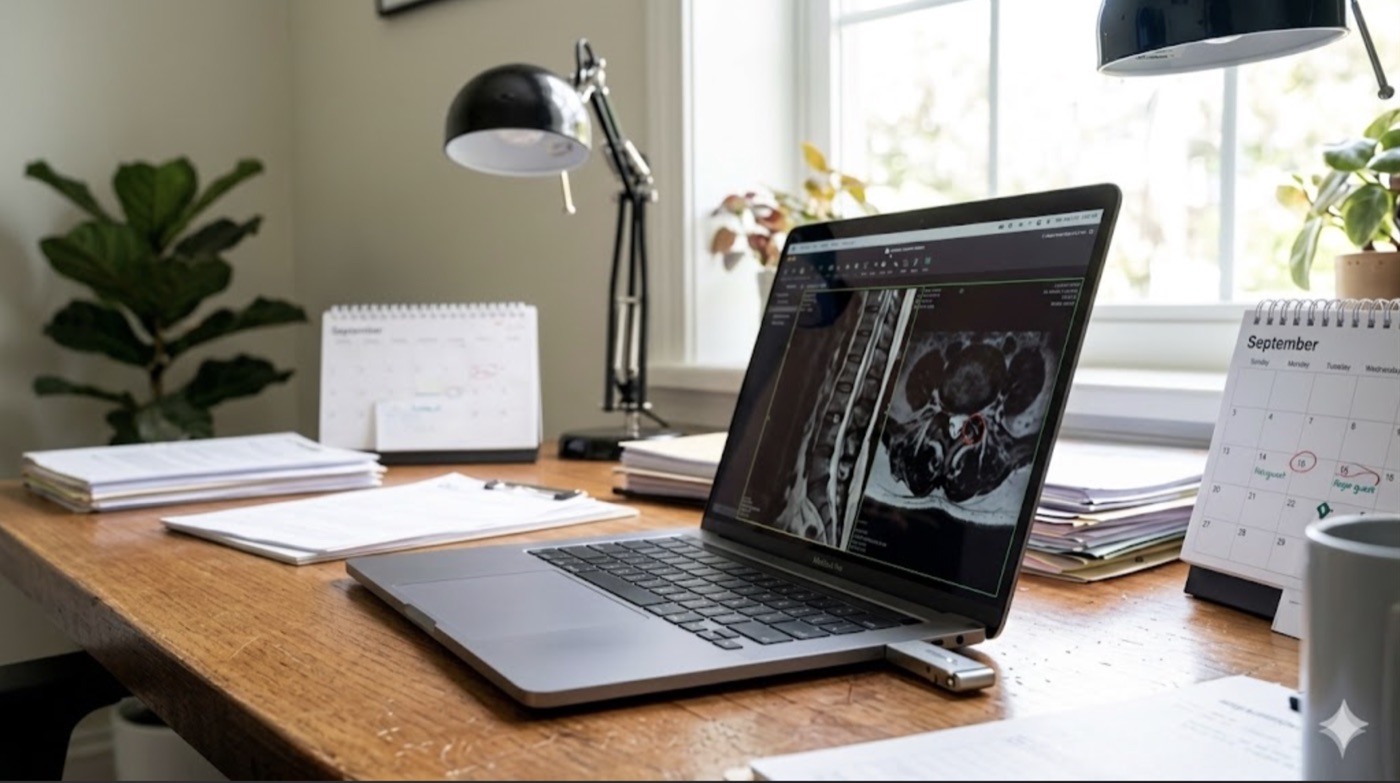
You have done the hard part. Your scans are gathered, organized, and copied onto a USB drive. But there is one quiet detail that decides whether a doctor's computer can actually read that drive when you hand it over: how the drive is formatted.
Formatting is the invisible "language" a drive speaks. Pick the wrong one and a perfectly good drive, full of perfectly good images, may simply not open on the computer at the front desk. Pick the right one and it works almost everywhere, from a modern hospital system to an old laptop in a small clinic. This guide tells you exactly which to choose and how to set it up.
The Short Answer
If you want the single safest choice: format the drive as FAT32. It is the most widely understood format in the world. Windows, Mac, Linux, hospital imaging systems, and even older or unusual computers can all read it. And the one thing FAT32 is bad at, holding a single file larger than 4 gigabytes, does not matter for medical images, because each individual image file is small.
There is just one situation where FAT32 does not fit: if your whole collection of scans is very large (bigger than about 32 gigabytes) or your drive is large and you want to use all of it. In that case, choose exFAT instead. Modern Windows, Mac, and Linux computers all read exFAT, and it handles drives and files of any size.
So: FAT32 for maximum compatibility, exFAT only if your archive is large. Everything else below explains why, and how to do it.
Why the Format Matters
A USB drive is just storage. Before it can hold files, it has to be organized with a "file system," which is the set of rules for how files are written and found. The computer reading the drive has to understand that same set of rules. If it does not, it may show an error, ask to "format" the drive (which would erase it), or just act like the drive is empty.
Hospitals and clinics use a wide mix of computers, some new, some quite old, running different operating systems. The format that the most of them can read without any extra software is the one that gives your drive the best chance of opening on the first try.
The Options, Compared
There are five common formats. Only two of them are safe for a drive you plan to hand to someone else.
FAT32 — the safe default for medical images. Readable and writable on Windows, Mac, and Linux, plus older and unusual computers. Its only real limits are a 4 GB cap per individual file (which medical images never reach) and a ~32 GB drive limit when using the built-in formatting tools. Best for maximum compatibility.
exFAT — for large archives or large drives. Also readable and writable on Windows, Mac, and modern Linux, with no practical size limits. Best when your collection or your drive is too big for FAT32.
NTFS — avoid for handoff. Windows reads and writes it, but Macs can only read it, not write to it, without extra software, and some clinic systems will not read it at all. Fine for Windows-only use; a bad choice for a drive that travels.
APFS / Mac OS Extended — do not use for handoff. These are Mac-only. A Windows or Linux computer will see the drive as unreadable.
ext4 — do not use for handoff. This is Linux-only. Windows and Mac cannot read it.
The pattern is clear. FAT32 and exFAT are the only two that every kind of computer can open. NTFS, APFS, and ext4 each belong to one world and will frustrate someone in another.
A quick caution about FAT32's limits, since they sound scarier than they are. The "4 GB per-file" limit applies to a single file. Medical images are stored as many small files (often thousands of them, each a fraction of that), so no single file ever comes close. The "~32 GB drive" limit is just a quirk of the simple formatting tools built into Windows and Mac. If your entire archive fits in 32 GB, which most people's do, FAT32 is perfect. If it does not, that is your cue to use exFAT.
Format the Drive Before You Build the Archive
Important: formatting erases everything on the drive. So format it first, while it is empty, and then copy your images onto it. If you have already copied your scans onto a drive that is in the wrong format, copy them somewhere safe first, reformat the empty drive, and copy them back.
On Windows
- Plug in the USB drive.
- Open File Explorer, find the drive under "This PC," and right-click it.
- Choose Format.
- Set File system to FAT32 (or exFAT for a large drive).
- Leave "Quick Format" checked, then click Start.
- Confirm, and wait a few seconds for it to finish.
If Windows does not offer FAT32 as an option, it is because the drive is larger than 32 GB. Either pick exFAT, or use a smaller drive for a FAT32 archive.
On Mac
- Plug in the USB drive.
- Open Disk Utility (press Command-Space, type "Disk Utility," press Return).
- In the sidebar, click View ▸ Show All Devices, then select the drive itself (the top entry, not the indented one beneath it).
- Click Erase.
- For Format, choose MS-DOS (FAT) for FAT32, or ExFAT for a large drive.
- For Scheme, choose Master Boot Record (this is the most compatible choice for older readers).
- Click Erase and wait for it to finish.
A Few Extra Touches for the Best Odds
- Keep one partition. A drive with a single, simple partition is easier for any system to read. The steps above already do this.
- Put your archive at the top level. When MIA Toolkit (or you) writes the images, keep the table-of-contents file (the DICOMDIR) and the image folders right at the root of the drive, not buried inside extra folders.
- Give the drive a clear name when you format it, like "SCANS," so it is easy to recognize.
- Use a quality drive. A cheap or counterfeit USB stick can fail or copy your images incorrectly no matter how it is formatted.
Quick Checklist
- Most people: format as FAT32, empty the drive first, then copy your images.
- Large collection (over ~32 GB): format as exFAT instead.
- Never hand off a drive formatted as NTFS, APFS, or ext4 — those only work on one kind of computer.
- Keep the DICOMDIR and image folders at the top level of the drive.
- Test the drive on a computer before your appointment.
Where MIA Toolkit Fits In
MIA Toolkit gathers your hospital imaging discs, builds a plain-language inventory of what you have, and assembles everything into one standards-compliant DICOMDIR archive on a USB drive. It copies your images onto whatever format the drive already has, so the small step of formatting the drive correctly before you build the archive is what makes the result openable almost anywhere.
MIA Toolkit is free, works completely offline, creates no account, sends nothing to the cloud, and does not track you. Your images never leave your hands.
A plain-language disclaimer: MIA Toolkit helps you organize and deliver your own medical images. It is not a medical device. It does not interpret or read your images, and it cannot tell you what they mean. It does not replace a radiologist or any other doctor. Formatting steps and operating systems change over time; please double-check the steps for your own computer. Everything here is provided without any warranty.
If you would like to try it, you can download MIA Toolkit for free — there's a step-by-step guide. Questions are welcome at support@miatools.tech.
FAQ
Is FAT32 or exFAT better for medical images? FAT32 is the most universally compatible, and because medical image files are small, its 4 GB per-file limit never gets in the way. Use FAT32 unless your whole archive is larger than about 32 GB, in which case use exFAT, which every modern computer also reads.
Can I just use the drive the way it came out of the package? Often yes, since most USB drives ship formatted as FAT32 or exFAT already. But it is worth checking, because some drives come as NTFS (Windows-only writing) or are set up for a single operating system. Formatting it yourself takes a minute and removes the guesswork.
Will formatting delete my images? Yes. Formatting erases everything on the drive. Always format the empty drive first, then copy your images onto it. If your images are already on a wrongly formatted drive, copy them somewhere safe before reformatting.
Should I use NTFS so I can fit big files? No, not for a drive you plan to hand to a doctor. Macs cannot write to NTFS without extra software, and some clinic systems will not read it. If you need to fit large amounts of data, use exFAT instead.
My doctor's office still could not open the drive. What now? First confirm the format is FAT32 or exFAT and that the DICOMDIR file is at the top level of the drive. Then try opening it with a free portable DICOM viewer placed on the same drive. Our companion guide on what to do after the transfer covers this step by step.